
Prefilled fields
Prefilled fields let you provide information in a field before a signing request is sent. Instead of asking the signer to enter information that you already know, you can fill it in yourself when creating the signing request.
The same template can then be reused with different information for different signing requests.
Why use prefilled fields?
Prefilled fields are useful when the document stays the same but some of the information changes each time you send it.
For example, suppose you use the same Event Waiver for events in different locations.
Your template can contain:
- Venue
- Event Date
- Event Name
When creating a signing request for a Boston event, you can prefill:
- Venue: Boston
- Event Date: October 10, 2026
- Event Name: Boston Workshop
When sending the same template for a New York event, you can use:
- Venue: New York
- Event Date: October 17, 2026
- Event Name: New York Workshop
You only need one template. The values can be different for each signing request.
Other common uses
Prefilled fields are useful for information that is known before the document is sent, such as:
- Customer or company name
- Quote or contract number
- Price or agreed amount
- Effective date
- Expiry date
- Event date and location
- Order or reference number
- Address or other customer information
For example, a standard quotation template can have a Price field. When creating a signing request, you can enter the agreed price before sending the quote to the customer.
How prefilled fields work
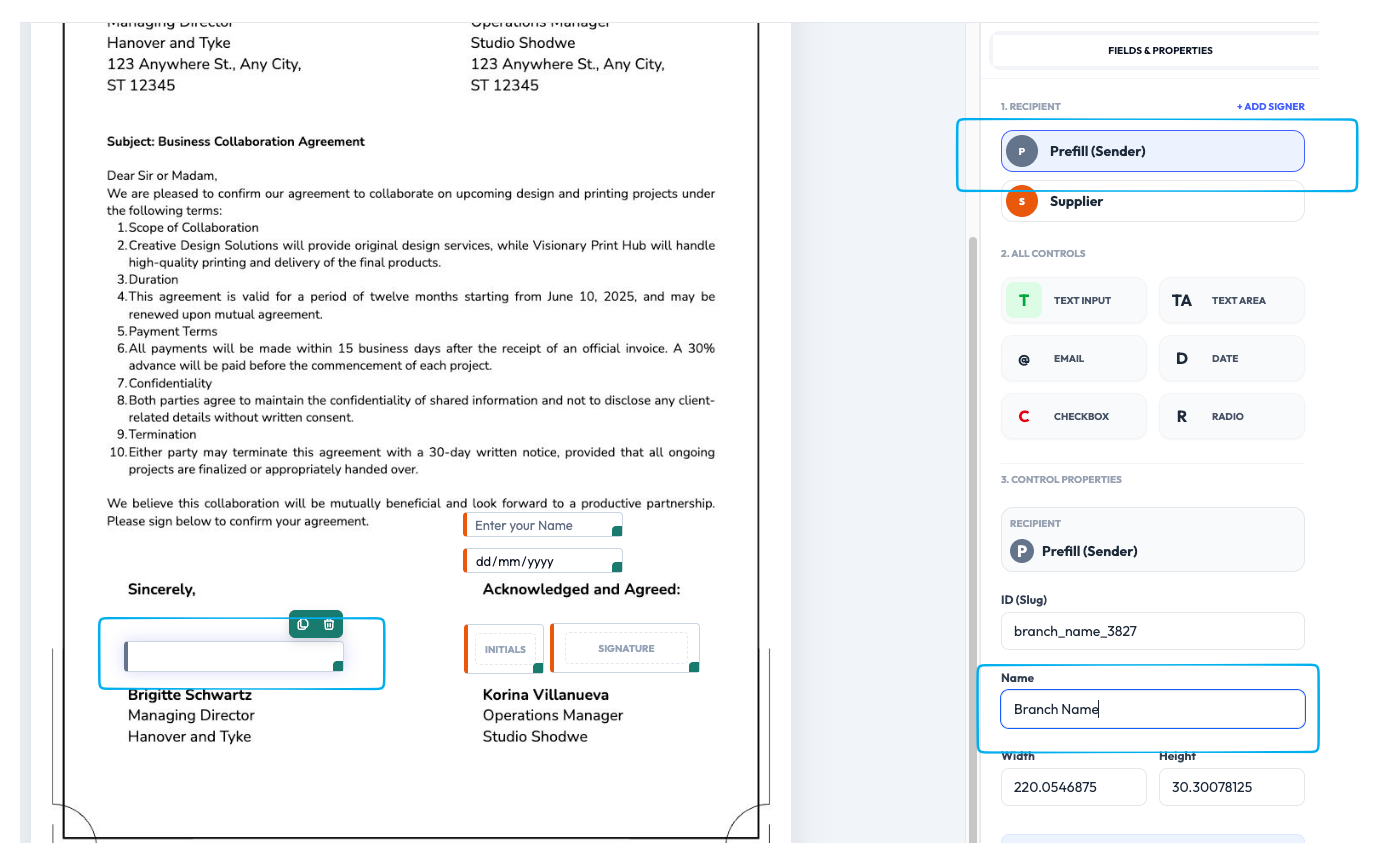
1. Add a prefilled field on the template. Place the field on the document as usual, then assign it to Prefill (Sender) and give it a clear name, such as Branch Name. This marks the field as sender-supplied instead of signer-completed.
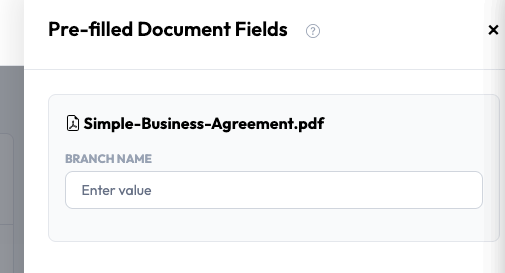
2. Fill the prefilled field when sending. When creating a signing request from the template, the Pre-filled Document Fields dialog asks you for a value for each prefilled field. Enter the value for this request, for example, New York, before sending.
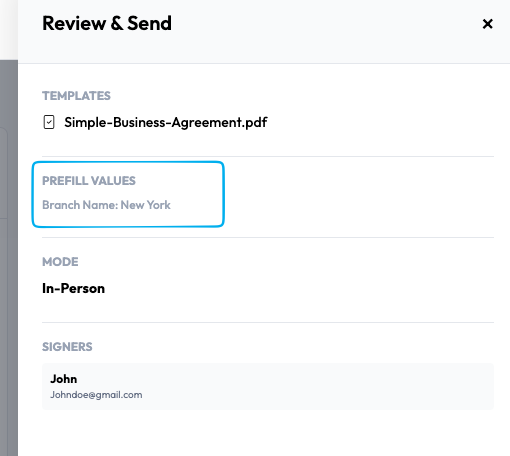
3. Preview what the recipient will see. The Review & Send step shows the Prefill Values, for example, Branch Name: New York, so you can confirm the data is correct before the request goes out. This is exactly what will appear on the document when the recipient opens it for signing.
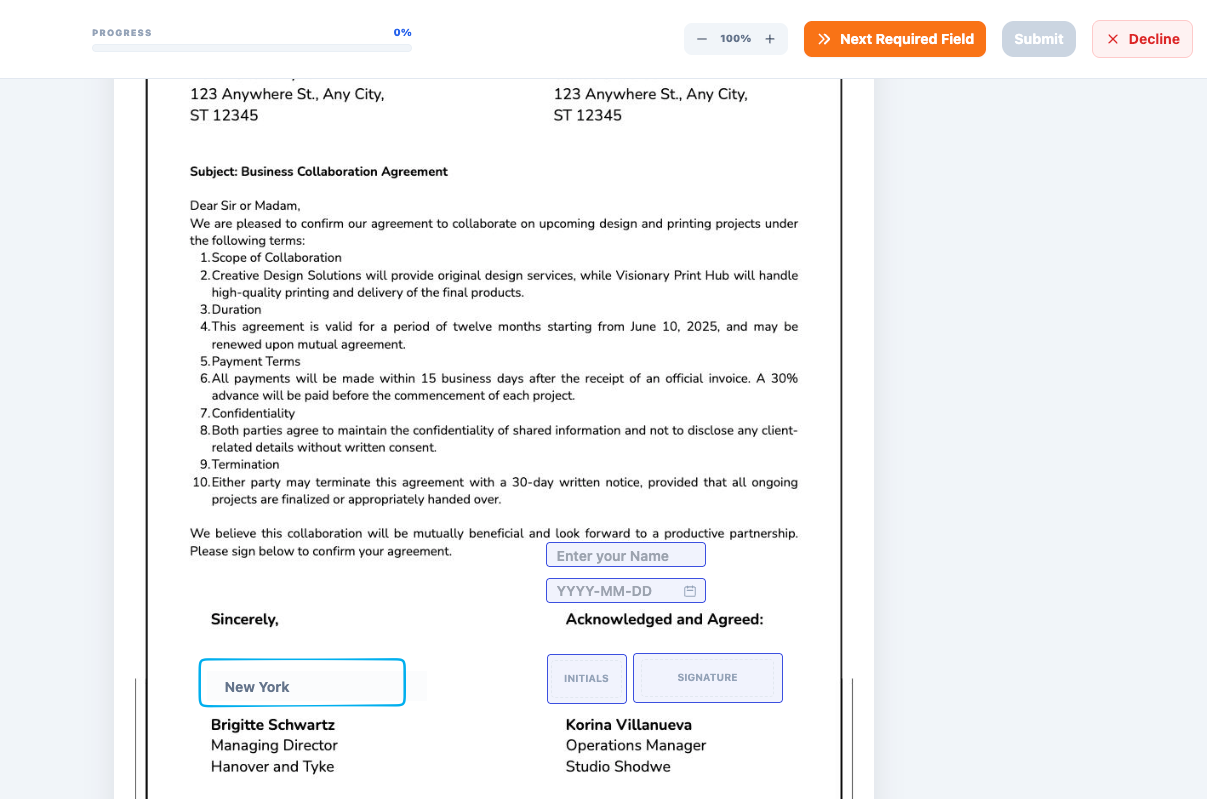
4. The signer finds the field already populated. When the recipient opens the signing request, the prefilled value, New York, is already in place on the document. The signer only completes their own fields, such as signature, initials, and date.
Prefilled fields vs. signer fields
The difference is simply who provides the information:
| Field | Who provides the value? |
|---|---|
| Prefilled field | The sender provides the value before sending the request. |
| Signer field | The signer provides the value while completing the signing request. |
For example, if you already know the quote amount, you can prefill the Price field. If the signer needs to enter their phone number, that should be a signer field.
Reuse one template for different requests
The main benefit of prefilled fields is that you don't need to create separate templates just because some information changes.
As shown above, the same template can carry Boston values for one request and New York values for the next.
One template + different prefilled values = different signing requests
This keeps your template library smaller and makes recurring signing workflows much easier to manage.