
Profile
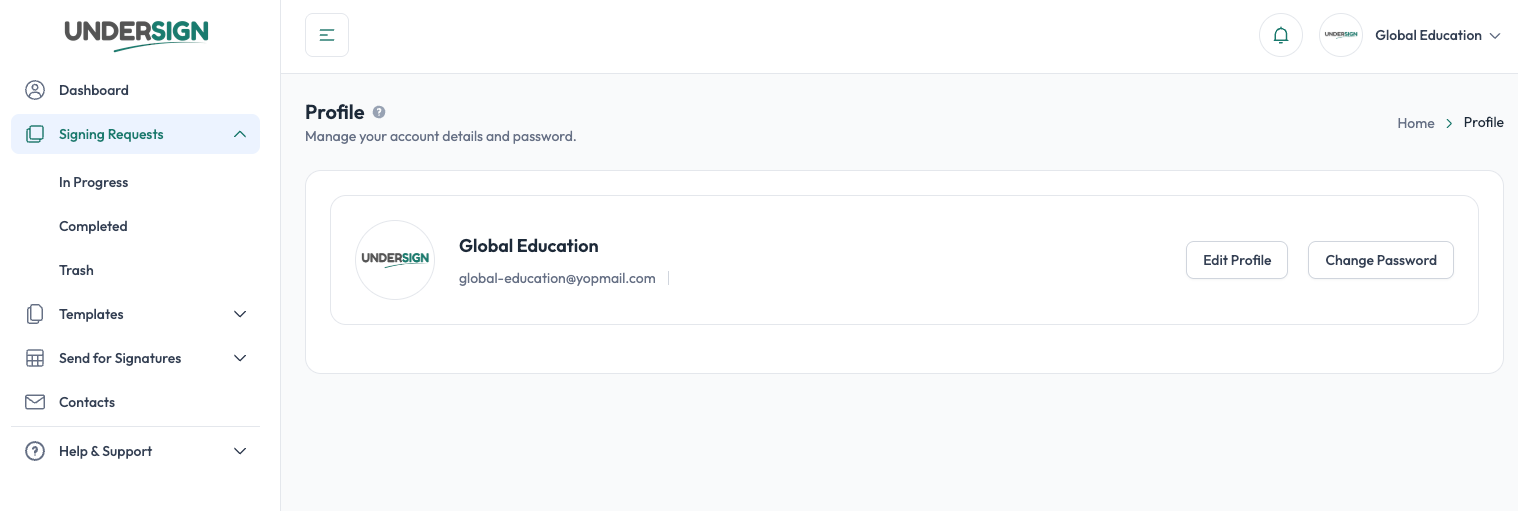
The Profile page is where you manage your account's basic profile information and password. Depending on your account permissions, you may also be able to update the company information and logo shown in Undersign.
Access your profile
Open the account menu in the top-right corner of Undersign and select Edit Profile.
Profile information
Your profile contains basic information associated with your Undersign account, including your company name, email address, and phone number.
From Edit Profile, you can update the information available to your account.
Company information and logo
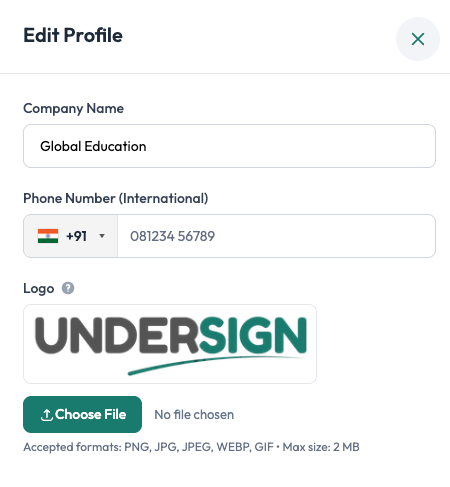
Your profile can include your Company Name, Phone Number, and Company Logo.
The company logo is used to represent your organization within Undersign and in applicable signing experiences.
Only administrator users with full account rights can change the company name, company information, or company logo. Other users can view this information but cannot modify it.
Change your password
You can change your Undersign account password from the Change Password option on the Profile page.
You'll need to enter:
- Old Password: your current password.
- New Password: the new password you want to use.
- Confirm New Password: enter the new password again to confirm it.
Changing your password only changes the password for your Undersign account. It does not change your SMTP password or other account settings.
Profile permissions
What you can edit depends on your account permissions:
| Information | Administrator with full rights | Other users |
|---|---|---|
| Basic personal profile information | Can edit | Can edit where permitted |
| Company name | Can edit | Cannot edit |
| Company logo | Can edit | Cannot edit |
| Password | Can change | Can change |
Your profile settings are separate from Account Settings, where account-level configuration such as SMTP, API keys, categories, and timezone settings is managed.