
Contacts
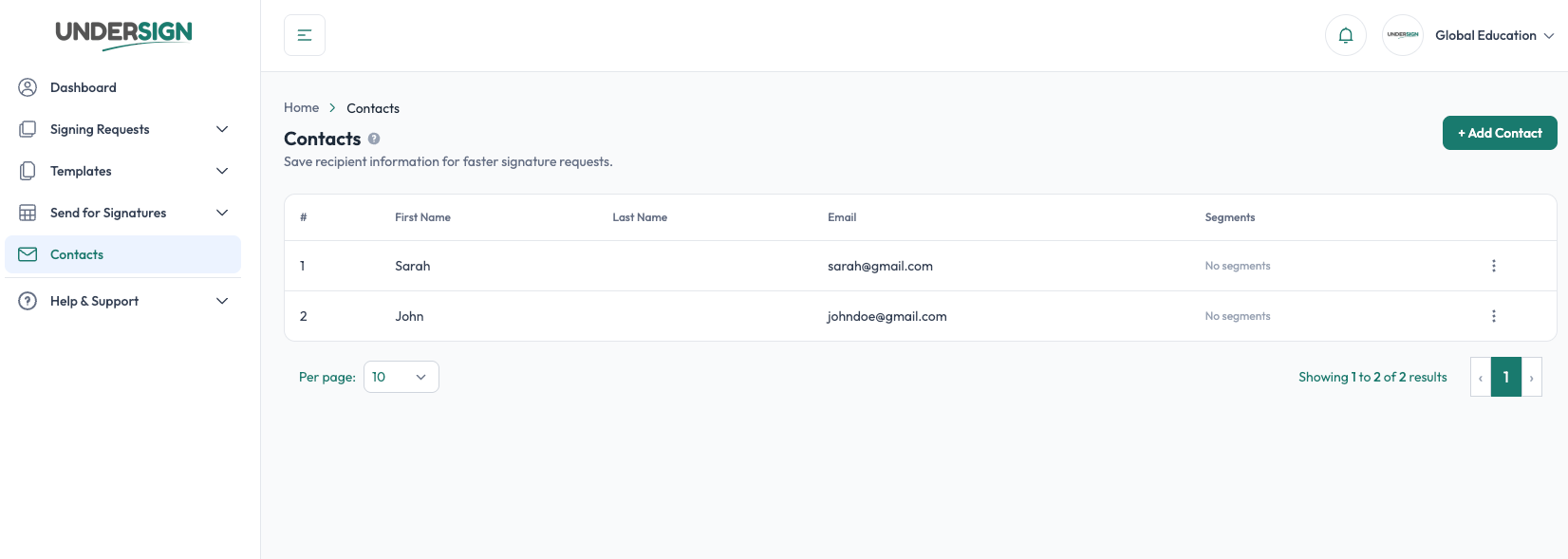
Contacts is your saved list of people you regularly send signing requests to. Save a person's name and email once, then select them quickly whenever you need to add them as a signer.
Contacts make recurring signing workflows faster and reduce the need to repeatedly enter signer information.
What's stored
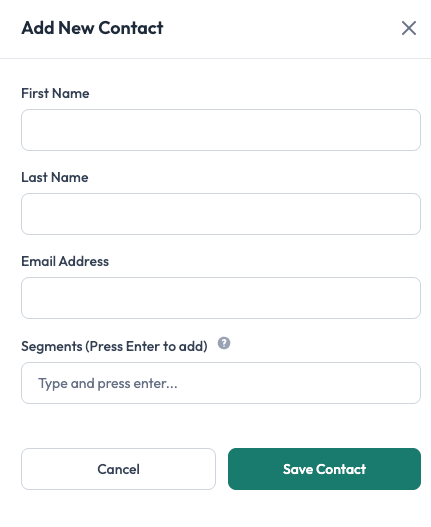
A contact includes basic information such as:
- Name
- Email address
You can save the people you work with regularly and reuse their details whenever you create a signing request.
Add and manage contacts
You can add contacts to your Contacts list and update their information when needed.
Keep your contacts organized so that frequently used recipients are easy to find when preparing a signing request.
Select contacts when adding signers
When creating a signing request, you need to provide the name and email address of each signer.
If the person is already saved in Contacts, you can select them from the available contact dropdown instead of entering their details manually.
For example:
Signer:
Select a contact...
→ John Smith: john@example.com
→ Sarah Jones: sarah@example.com
Selecting a contact automatically provides the saved signer information for the request.
Contacts and templates
Templates define the signer roles, while Contacts provide the actual people who will fill those roles when you create a signing request.
For example:
Template
- Customer
- Company Representative
Signing Request
- Customer → John Smith, selected from Contacts
- Company Representative → Sarah Jones, selected from Contacts
This allows the same template to be reused for different recipients without changing the template's signer and field setup.
See Add Signers.
Contacts do not send anything
Saving someone as a contact does not send them an email or create a signing request.
It simply saves their information so you can select them more easily when you are ready to send a document for signature.