
Configure your email & SMTP
Undersign uses your own SMTP server to send signing invitations, notifications, and completed documents by email.
Before you can send a signing request by email, you must configure and verify your SMTP settings.
Open SMTP Configuration
You can find the SMTP settings under your account settings:
- Open the account menu from the top-right corner of Undersign.
- Select Account Settings.
- Open SMTP Configuration.
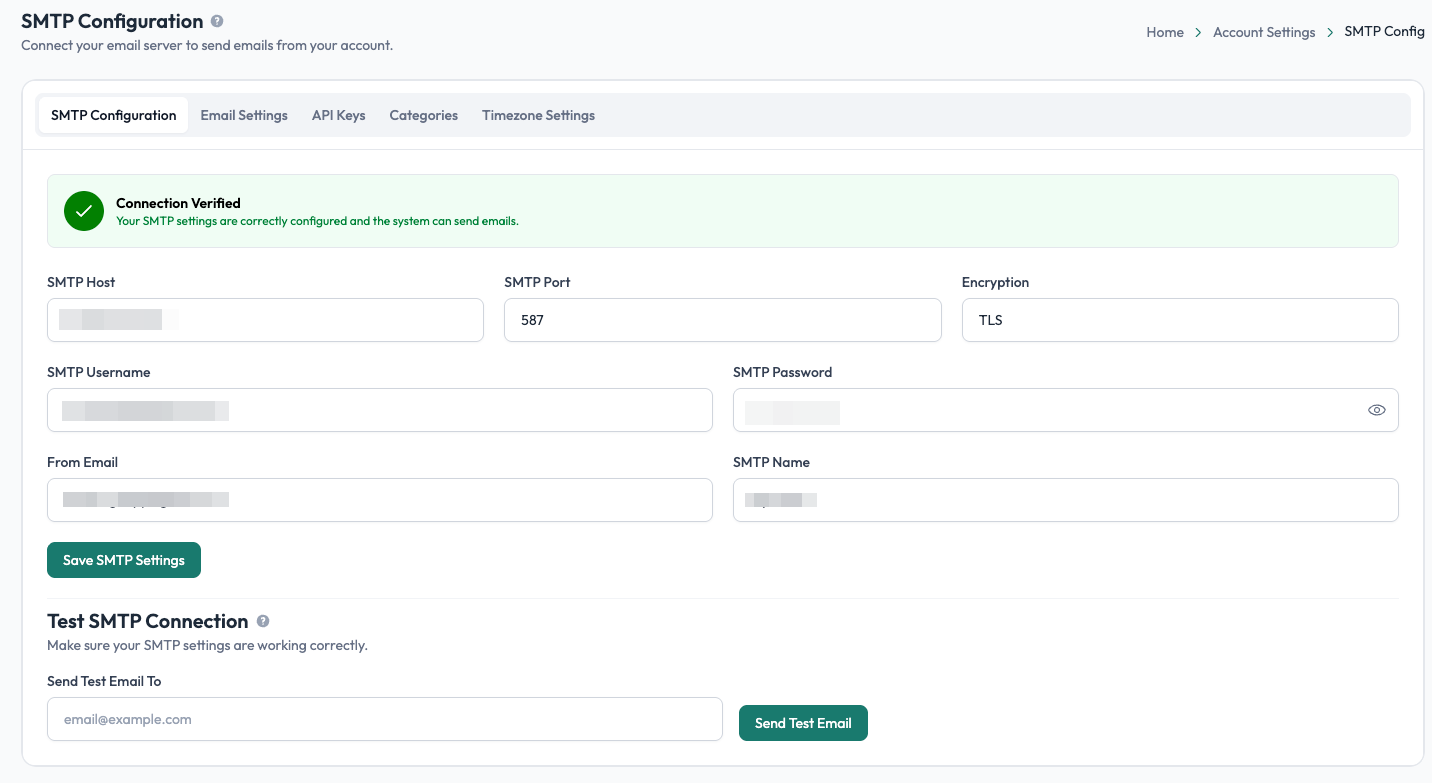
Enter your SMTP details
On the SMTP Configuration page, enter the details provided by your email service:
| Setting | Description |
|---|---|
| SMTP Host required | The mail server provided by your email service, such as smtp.gmail.com or smtp.yourdomain.com. |
| SMTP Port required | The SMTP port used by your provider, commonly 587 or 465. |
| Encryption required | Select the encryption method required by your email provider, such as SSL. |
| SMTP Username required | The email account or username used to connect to your SMTP server. |
| SMTP Password required | The password or app password required by your email provider. |
| From Email required | The email address that will appear as the sender of emails sent by Undersign. |
| SMTP Name required | The name or sender information associated with your outgoing emails. |
If you're not sure which values to use, check your email provider's SMTP documentation or contact your email administrator.
Select Save SMTP Settings when you have entered the required information.
Test your SMTP connection
After saving your settings, use the Test SMTP Connection section at the bottom of the page.
Enter an email address in Send Test Email To and select Send Test Email. This lets you confirm that Undersign can successfully connect to your SMTP server and send an email.
Once your SMTP connection is successfully verified, Undersign can use it to send signing invitations and other email notifications.
Important: You must configure and successfully verify your own SMTP connection before you can send signing requests by email. Undersign does not provide a shared SMTP service for sending your emails.