Create your Undersign account
Create your Undersign account to manage templates, signing requests, documents, contacts, and account settings from one workspace.
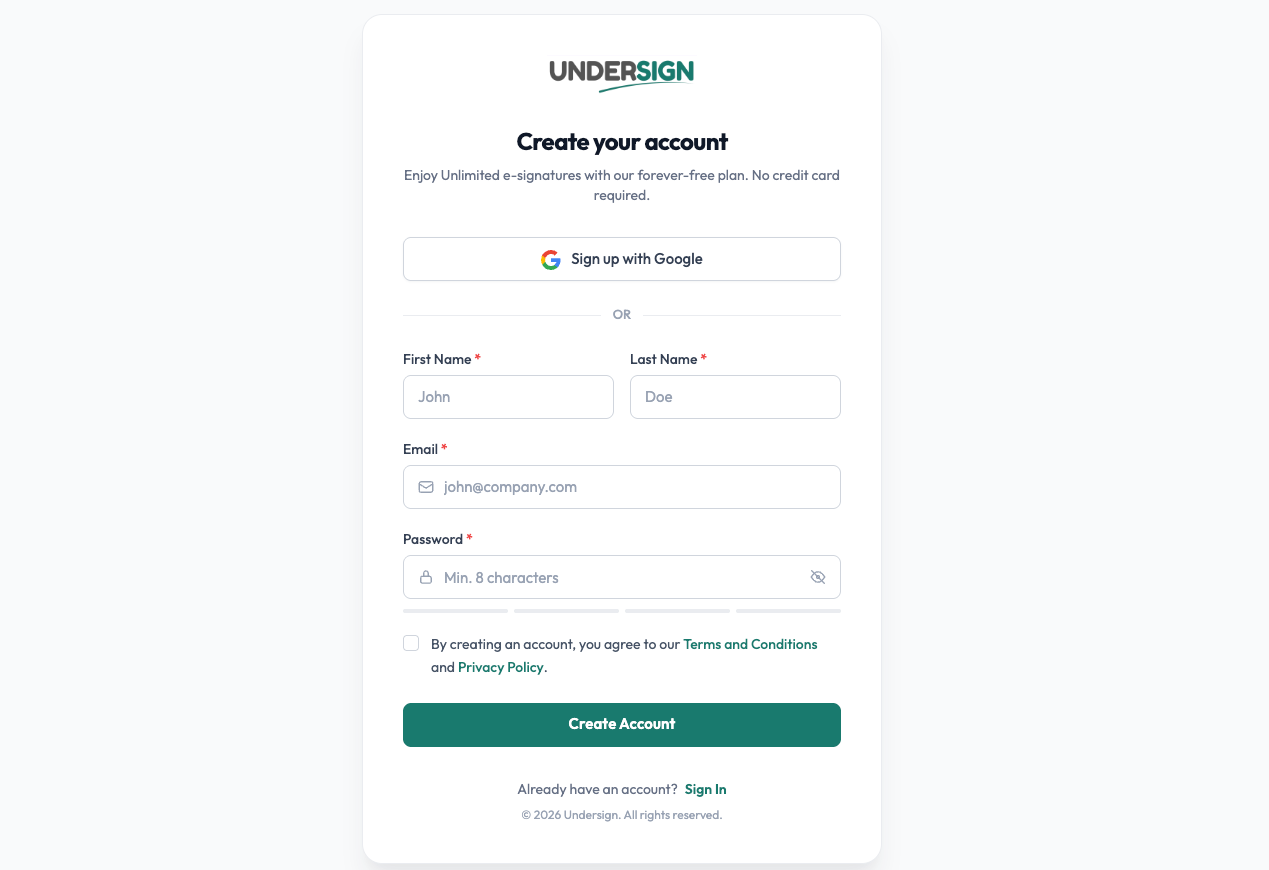
You can sign up using any email address or continue with your Google account.
Sign up
Open undersign.app and choose Start free.
You can create your account in either of these ways:
- Email address: Enter your email address and choose a password of at least 8 characters.
- Google: Select Continue with Google and follow the Google sign-in steps.
No credit card is required, and the free plan does not expire.
Verify your email
If you signed up with an email address, we send a verification link to that address. Open the email and click Verify email to confirm your email address.
Email verification is required before you can send signing requests and access some account settings.
If you signed up with Google, your email is already verified through Google and you can continue directly to your account.
Can't find the verification email? Check your spam or junk folder first. If you still can't find it, you can request a new verification email from the sign-in page. Allow a few minutes for the email to arrive.
See Account & login troubleshooting for help.
Sign in
After creating your account, return to the Undersign sign-in page.
- If you signed up with email and password, enter your email and password.
- If you signed up with Google, select Continue with Google.
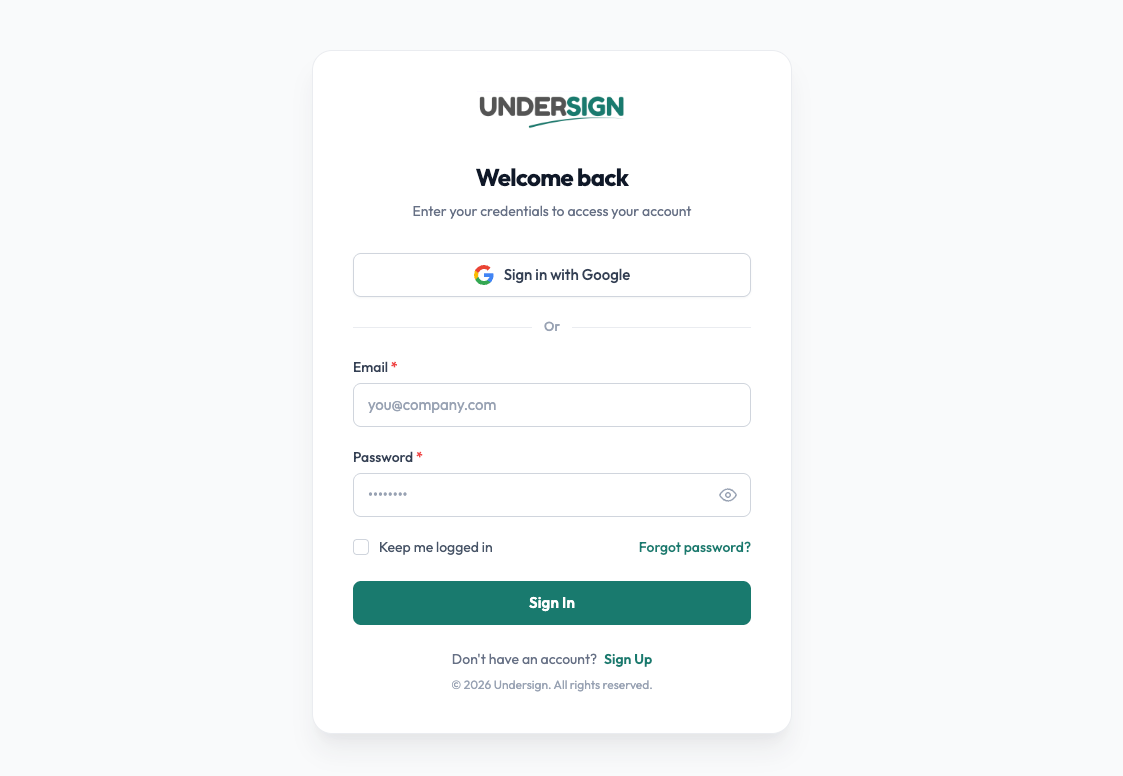
If you've forgotten your password, select Forgot password? to request a secure password-reset email.