
Reusable templates
Templates are uploaded documents that you can prepare once and reuse whenever you need to collect signatures. Instead of uploading and setting up the same document every time, you add the required signing fields to a template and reuse it for multiple signing requests.
Template status
Every uploaded document starts as a Raw template. It becomes Fillable once you add and configure the fields needed for signing.
| Status | What it means |
|---|---|
| Raw | The document has been uploaded but no signing fields have been configured yet. A Raw template cannot be sent for signature. |
| Fillable | The template has the required signing fields and is ready to be used in a signing request. |
Once a Raw template has been prepared with its fields and signer setup, it can be reused to create signing requests without repeating the same setup.
Preparing a template
A typical template workflow is:
- Upload a document: Add the PDF you want to reuse for signing.
- Add fields: Place signature, initials, date, text, checkbox, and other fields where they are needed.
- Configure signers: Define the signers and assign the appropriate fields to each signer.
- Configure field visibility: Control which fields are visible to each signer when needed.
- Save the template: Once the required setup is complete, the template becomes Fillable and can be used for signing requests.
See Add fields, Add signers, and Configure fields.
What you can do with a template
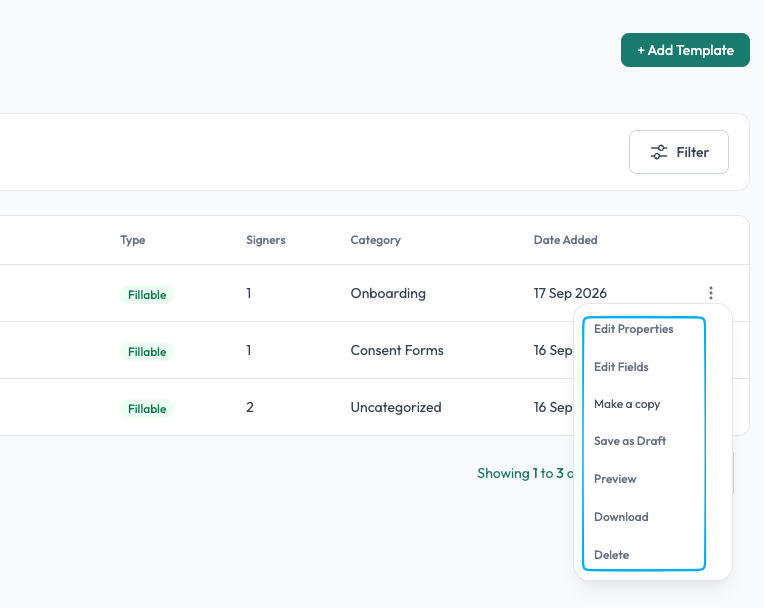
From the Templates page, you can manage your templates using the actions available from the ⋮ menu.
Edit Properties
Change the template's basic information, such as its name, category, or other template properties.
Edit Fields
Open the template editor to add, remove, position, or configure fields.
Make a Copy
Create a duplicate of an existing template. This is useful when you want to create a similar template without changing the original.
Save as Draft
Save your current template setup as a draft when you are not ready to make it available for signing yet.
Preview
View the template as it will appear to signers without creating a signing request.
Download
Download the template's document file.
Delete
Move the template to Trash. Templates in Trash can be managed separately and recovered when supported.
Reuse templates for signing
Once a template is Fillable, you can select it when creating a signing request. You can use the same template repeatedly for different recipients without having to upload the document or recreate its fields each time.
When creating a signing request, you can then define the recipients, add prefilled information, configure signing options, and send the request.
Organize your templates
As your template library grows, you can use Categories to organize templates and make them easier to find.
You can also search and filter the Templates page to quickly locate a specific template.
See Template Categories.
In short
Upload → Raw → Add and configure fields → Fillable → Reuse for signing requests.
The important distinction is that a Raw template is only an uploaded document, while a Fillable template is prepared and ready to be sent for signature.