
Template categories
Categories help you organize templates so they are easier to find and manage. You can group templates by document type, workflow, department, or any other structure that makes sense for your business.
For example, you might create categories such as:
- Agreements
- Contracts
- Waivers
- HR
- Sales
- Onboarding
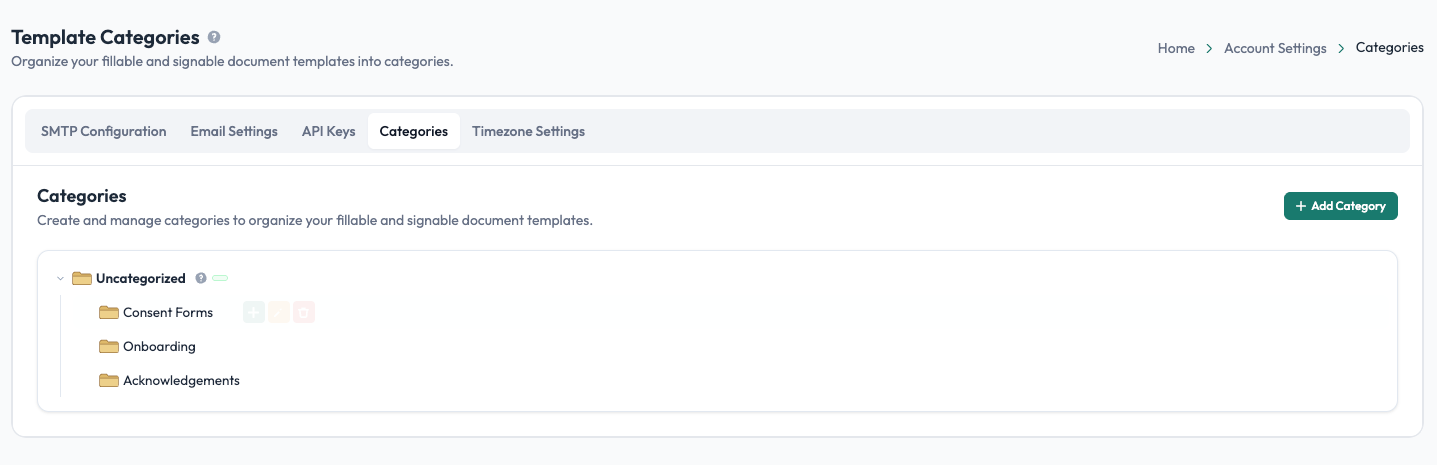
Create a category
Go to Account Settings and open Categories to create and manage your template categories.
Add a category name that clearly describes the group of templates it will contain.
Assign a category to a template
When creating or editing a template, you can select the appropriate category for it.
For example, an Employee NDA can be assigned to the HR category, while a Customer Agreement can be assigned to Contracts.
You can change a template's category later if it belongs in a different group.
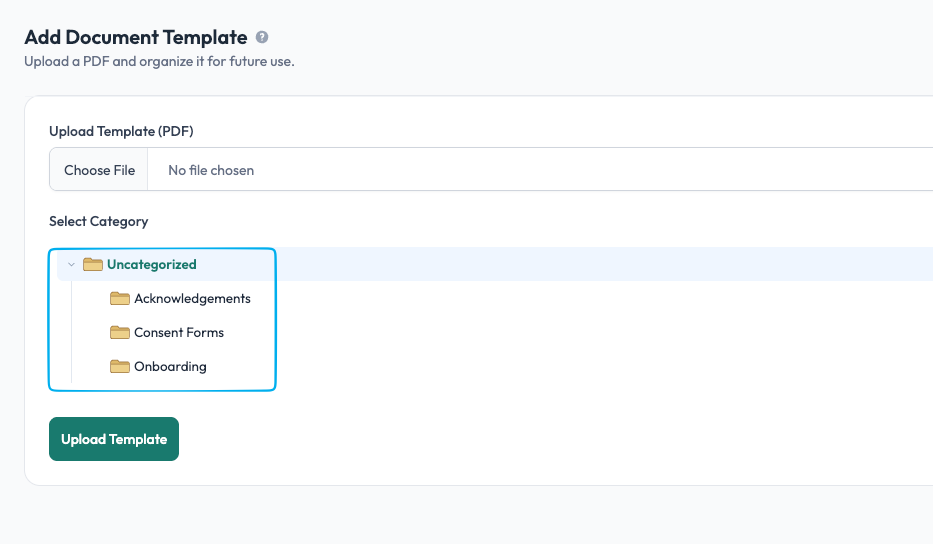
Templates that have not been assigned a category can be found under Uncategorized.
Keep categories simple
Categories work best when they reflect how you actually organize and find documents.
Use clear, meaningful names rather than creating a large number of very specific categories. For example, Sales may be more useful than separate categories for Sales Quotes, Sales Agreements, and Sales Contracts if your team normally manages these documents together.
Categories are shared
Template categories use the same category list as other areas of Undersign where categories are available. This keeps your document organization consistent across the application.
See Categories for more information.