
Templates overview
A template is a document you prepare once and reuse for multiple signing requests. You upload the document, add the fields and signer setup you need, and then reuse that prepared template whenever you need to collect signatures.
Templates are especially useful for documents that follow the same structure but are sent to different people, such as agreements, waivers, applications, forms, and contracts.
Raw and Fillable templates
Every document you upload to Templates starts as a Raw template.
Raw template
A Raw template is the original uploaded document before signing fields have been added.
It can be viewed, edited, organized, downloaded, or used as the starting point for preparing a template, but it cannot be sent for signature.
Fillable template
A Fillable template is a Raw template that has been prepared with the fields needed for signing.
You can add and configure fields such as signatures, initials, dates, text, checkboxes, and other input fields. You can also define the signers and their field assignments.
Once a template is Fillable, it is ready to be used in a signing request.
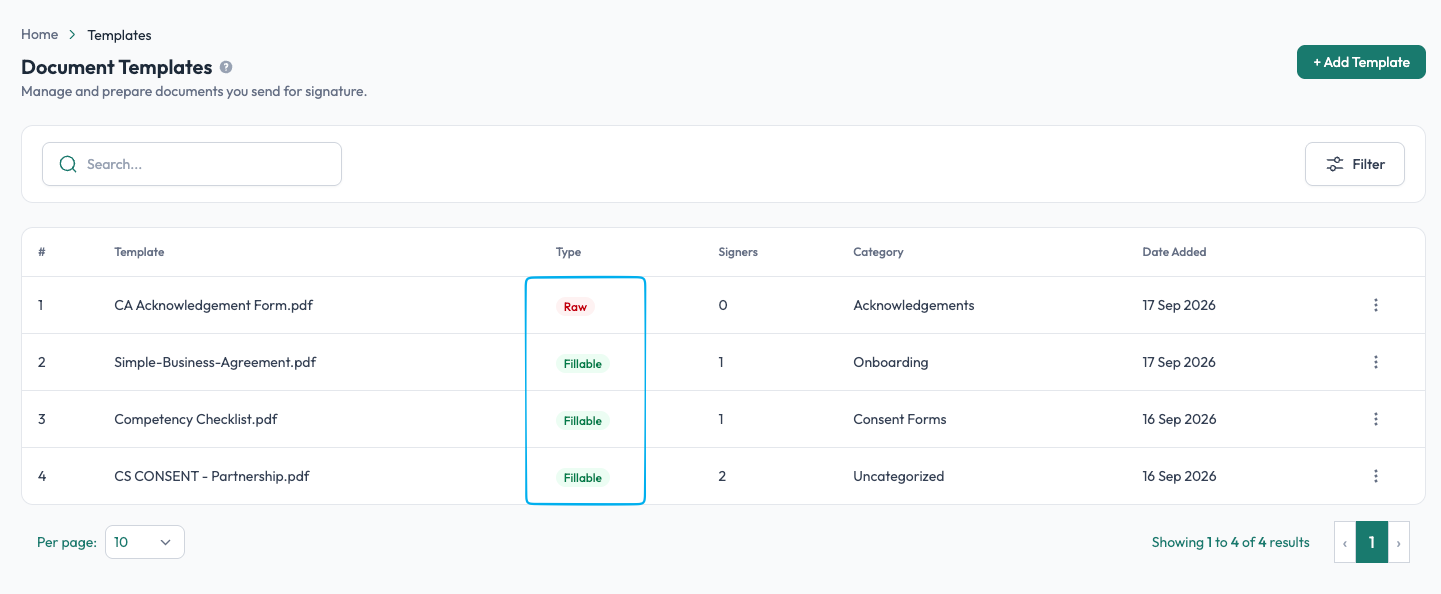
In the Templates list, the Type column shows whether a template is Raw or Fillable.
Preparing a template
A typical template setup involves:
Upload a document
Upload the PDF you want to reuse. The new template starts with Raw status. See Create a template.
Add fields
Place the fields that signers need to complete on the document. See Add fields.
Configure fields
Configure properties such as the field name, size, required status, and other field-specific settings. See Configure fields.
Define signers
Add the signer roles and assign the appropriate fields to each signer. See Add signers.
Define prefilled information
Where needed, define fields that can be prefilled when creating a signing request. See Prefill Fields.
After the required signing setup is complete, the template becomes Fillable and can be selected when creating a signing request.
Reuse the same template
The main benefit of a template is that you don't have to repeat the same document setup for every signing request.
For example, you can create one standard Event Waiver template with the required signature fields and a prefill field for the event location and date. You can then reuse that template for different events and provide the appropriate information each time you send it.
The same template can be used for many different sets of signers.
Manage your templates
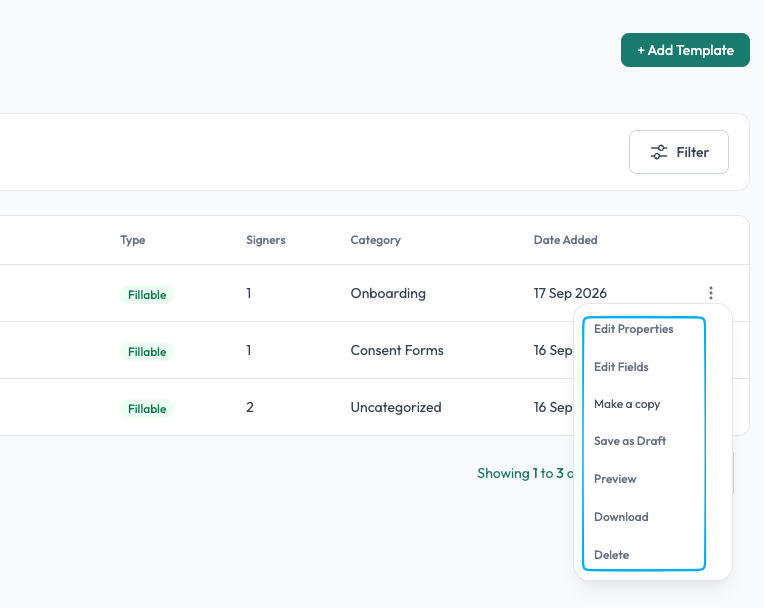
The Templates page provides tools to manage your template library.
You can:
- Search and filter templates to find the one you need.
- Organize templates into categories to keep related documents together.
- Edit properties such as template information and category.
- Edit fields when the signing setup needs to change.
- Make a copy to create a new template based on an existing one.
- Save as draft when you want to continue preparing a template later.
- Preview the template before using it.
- Download the underlying document.
- Delete templates that are no longer needed.
Organize templates with categories
Templates can be assigned to categories to make them easier to organize and find.
When uploading a template, you can select a category from the available category structure. You can also change the category later through the template's properties.
See Template Categories.
Templates vs. signing requests
It is useful to understand the difference:
- Template: the reusable document setup you prepare in advance.
- Signing request: an actual request created from that template and sent to specific signers.
- Completed document: the signed result produced after the signing request is completed.
In simple terms:
Upload document → Raw template → Add and configure signing setup → Fillable template → Create signing request → Sign → Completed document
This separation lets you prepare a document once and reuse it many times without rebuilding the signing setup for every recipient.