
Document details
Select Details to see the complete information for a signing request.
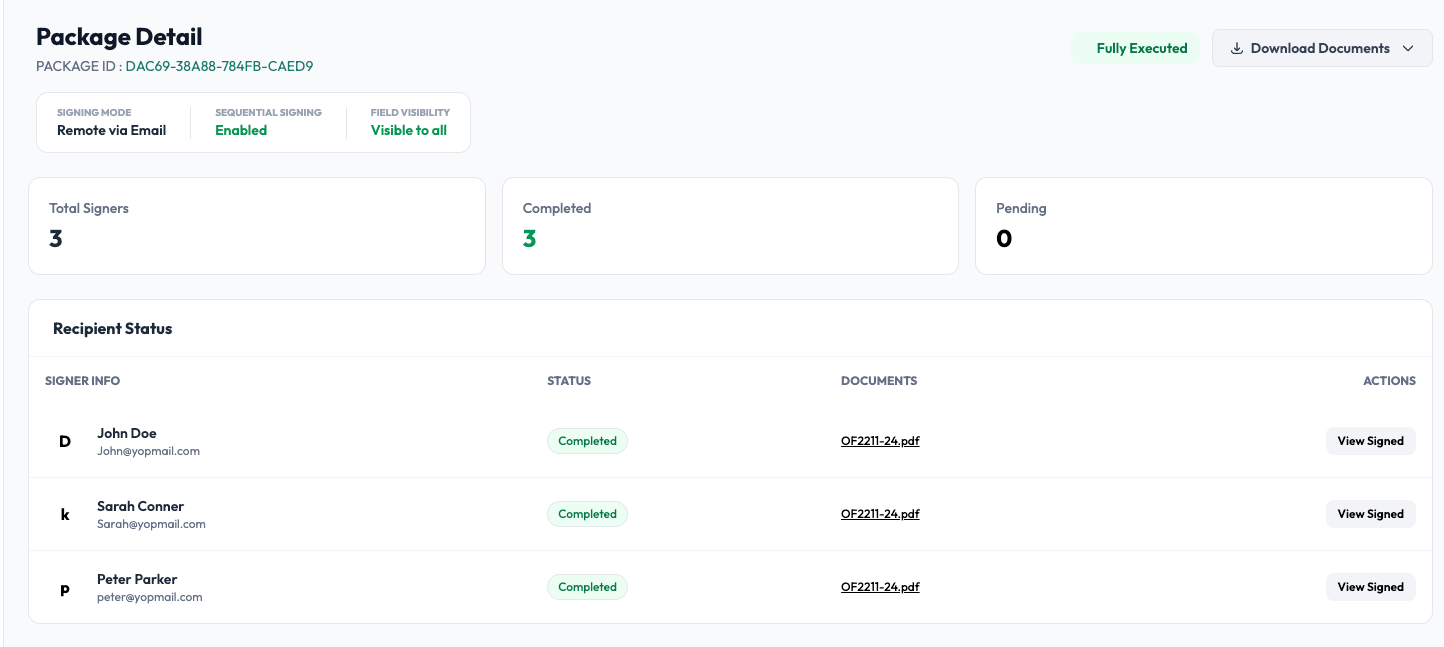
The details page shows:
- The Package ID and current status
- Signing mode
- Whether sequential signing is enabled
- Field visibility settings
- Total number of signers
- Number of completed and pending signers
- Each signer's name, email, and status
- Documents associated with each signer
- Actions available for each signer
Actions depend on the signing mode
The action available for a signer depends on how the signing request was created.
Remote via Email
For a Remote via Email request, Undersign sends the signer a secure signing link by email.
If a signer has not yet completed their part, you can use Resend to send the signing invitation again.
If the request was created through Bulk Signing, the details page also identifies the bulk batch that the request belongs to. Each recipient has their own signing request and progress can be tracked separately.
In-Person
For an In-Person request, the signer completes the request on the sender's device rather than through an email invitation.
When a signer is ready, the sender can use Sign Now from the details page to open the signing experience for that signer.
No email invitation is required for the signer in this mode.
Signing progress
The Progress column on the Sent Documents list provides a quick overview of how many signers have completed their part.
For example:
- 0 of 1 signed: one signer is still pending.
or:
- 1 of 2 signed: one signer has completed their part and one signer is still pending.
Open Details to see the individual status of each signer and which documents are associated with them.
Sent document status
Undersign uses three main statuses for signing requests:
| Status | What it means |
|---|---|
| Sent | The signing request has been sent and is still waiting for the required signing activity to be completed. |
| Completed | All required signers have completed the signing request. |
| Declined | A signer has declined the signing request. |
The Sent section is primarily where you monitor requests that are still in progress.
Request overview
At the top of the page, you can see the request's:
- Package ID
- Current status
- Signing Mode
- Sequential Signing setting
- Field Visibility setting
- Bulk Batch information, when the request was created through Bulk Signing
Signer status
The Recipient Status section shows each signer participating in the request.
For each signer, you can see:
- Name
- Email address
- Current status
- Documents associated with their signing
- Available action
The page also provides a summary of the Total Signers, Completed, and Pending counts.
In-Person vs. Remote details
The details page changes slightly depending on the signing mode.
In-Person signing
For an In-Person request, the signer completes the request on the sender's device. A pending signer can have a Sign Now action, which opens their signing experience.
The details page may also provide access to the In-Person Links from the Sent Documents list.
Remote via Email
For a Remote via Email request, the signer receives their signing link by email. A pending signer has a Resend action, allowing the sender to send the invitation again if necessary.
For bulk signing requests, the details page also shows the Bulk Batch associated with the individual request.
After a request is completed
Once all required signers have completed the request, it moves to Completed. The completed documents, audit trail, and completion certificate can then be accessed from the completed request.
If a signer declines, the request moves to Declined, where its details and signing activity remain available for review.
See Completed Documents, Audit Trail, and Completion Certificates.