
Configuring a public link
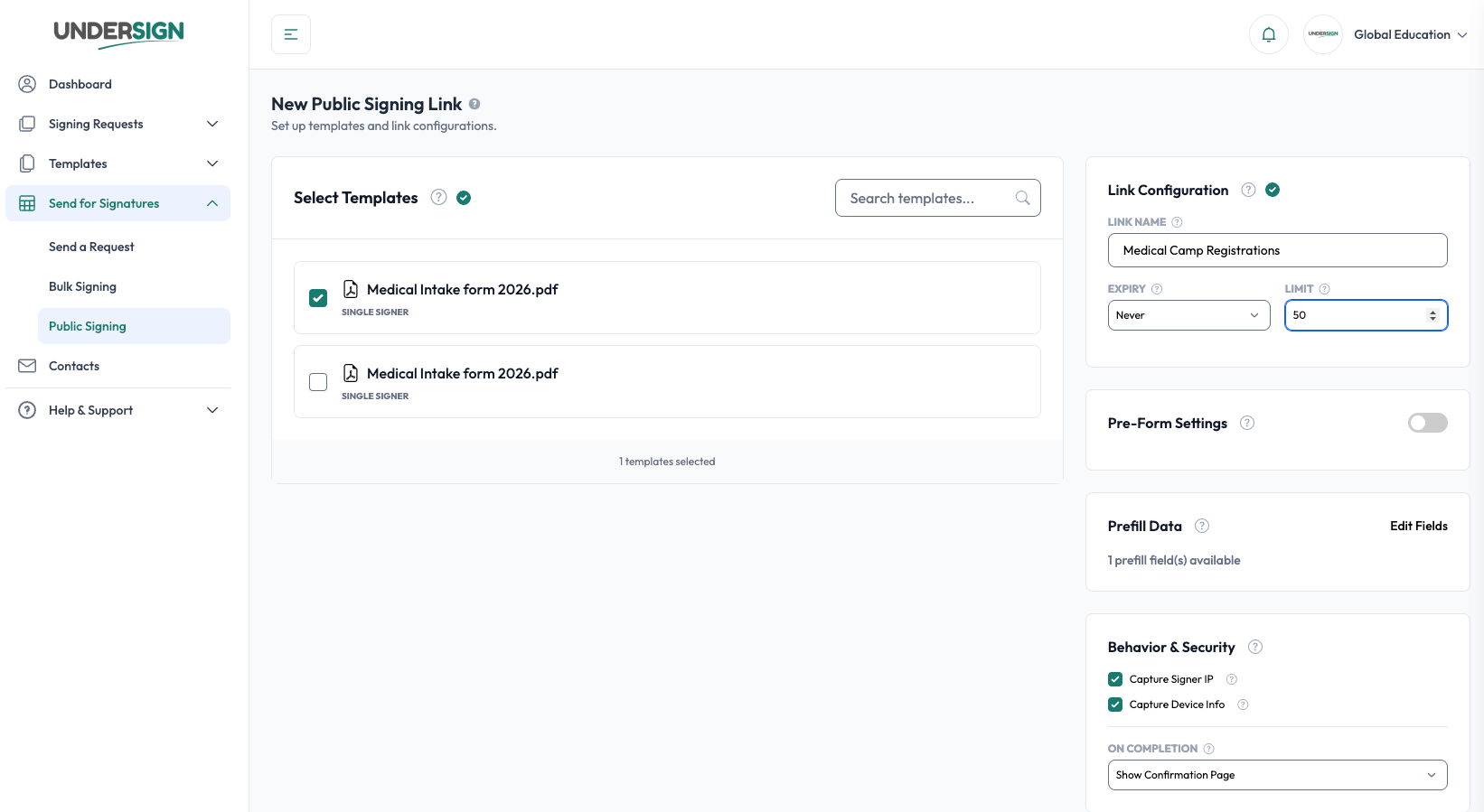
Give the link a name, set its expiry and submission limit, then tune the signing experience with pre-form, prefill, and behavior settings.
1. Configure the link
Give the link a meaningful Link Name.
For example:
IT FormsVisitor WaiverCustomer Consent Form2026 Application Form
The name is used internally to identify the link in the Public Signing Links list.
Expiry
Set when the public link should stop accepting new signing sessions.
A link can also be configured with Never expiry when it should remain available until manually disabled or otherwise made inactive.
Submission limit
The submission limit controls how many signing sessions can be completed through the link.
For example:
0: no submission limit10: allow up to 10 completed submissions
The submission count is tracked in the Public Signing Links list.
2. Pre-form settings
A Public Signing Link can optionally use Pre-Form Settings.
When enabled, the signer is presented with the configured pre-form before entering the signing process.
This can be useful when information needs to be collected before the person starts signing. For example, a pre-form may be used to collect information such as:
- Name
- Email address
- Contact information
- Other information required by the configured workflow
The exact fields available depend on the configuration of the signing link.
3. Prefill data
Prefill Data allows configured information to be populated into the signing experience before the signer completes the request.
This is useful when some information is already known and the signer should not have to enter it again.
Review the available fields using Edit Fields after selecting the required template(s).
Prefilled information should be used for information that is known at the time the link is configured or information that should be consistently presented to each signing session.
4. Link behavior
Public Signing Links provide additional controls for how signing sessions are handled.
Capture Signer IP
When enabled, Undersign records the signer's IP address as part of the signing activity. This can provide useful audit information about where a signing session originated.
Capture Device Info
When enabled, Undersign records available device information associated with the signing session. This provides additional context in the signing/audit record.
On Completion
The On Completion setting determines what happens after the signer successfully completes the signing process. For example, the current configuration provides Show Confirmation Page, which allows the signer to see a completion confirmation after submitting the signing request.